Nebula wallpaper generator
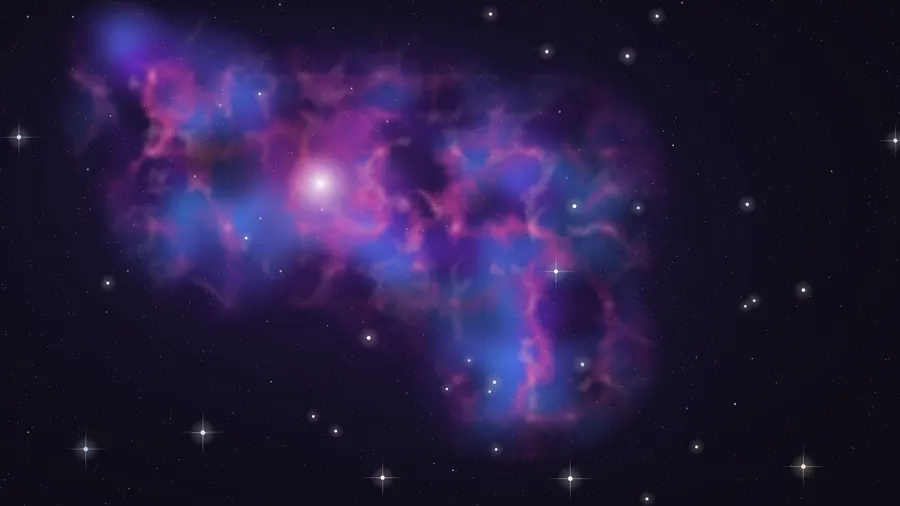
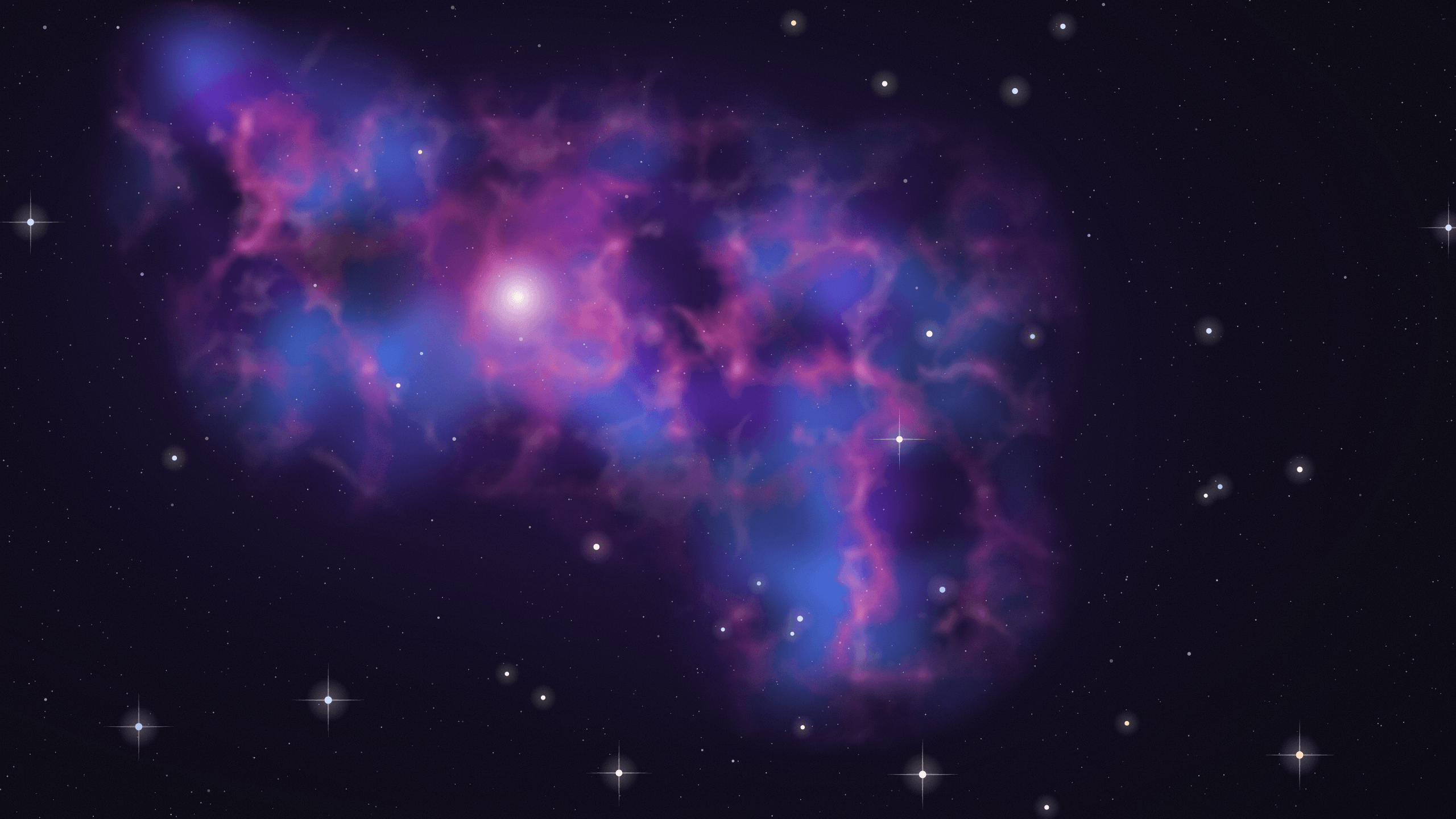
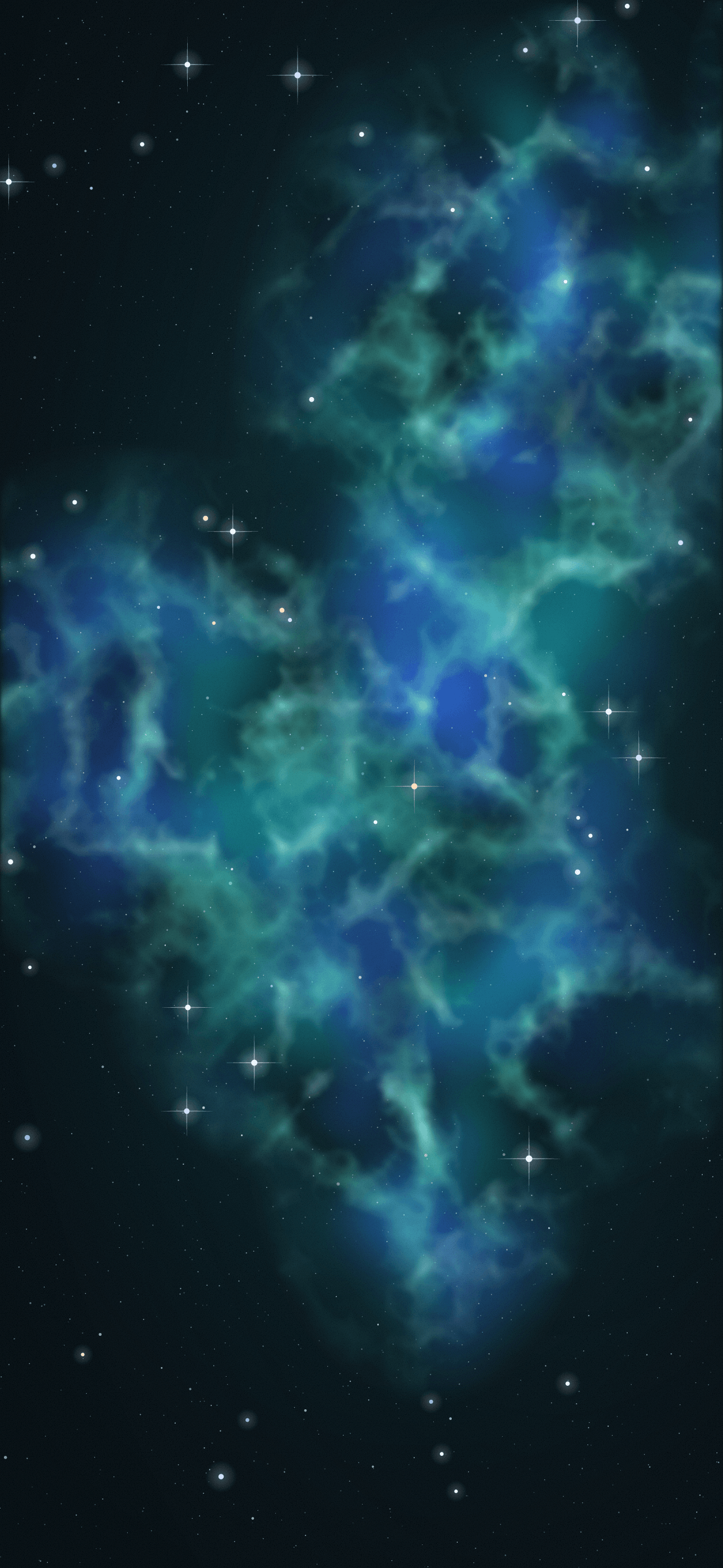
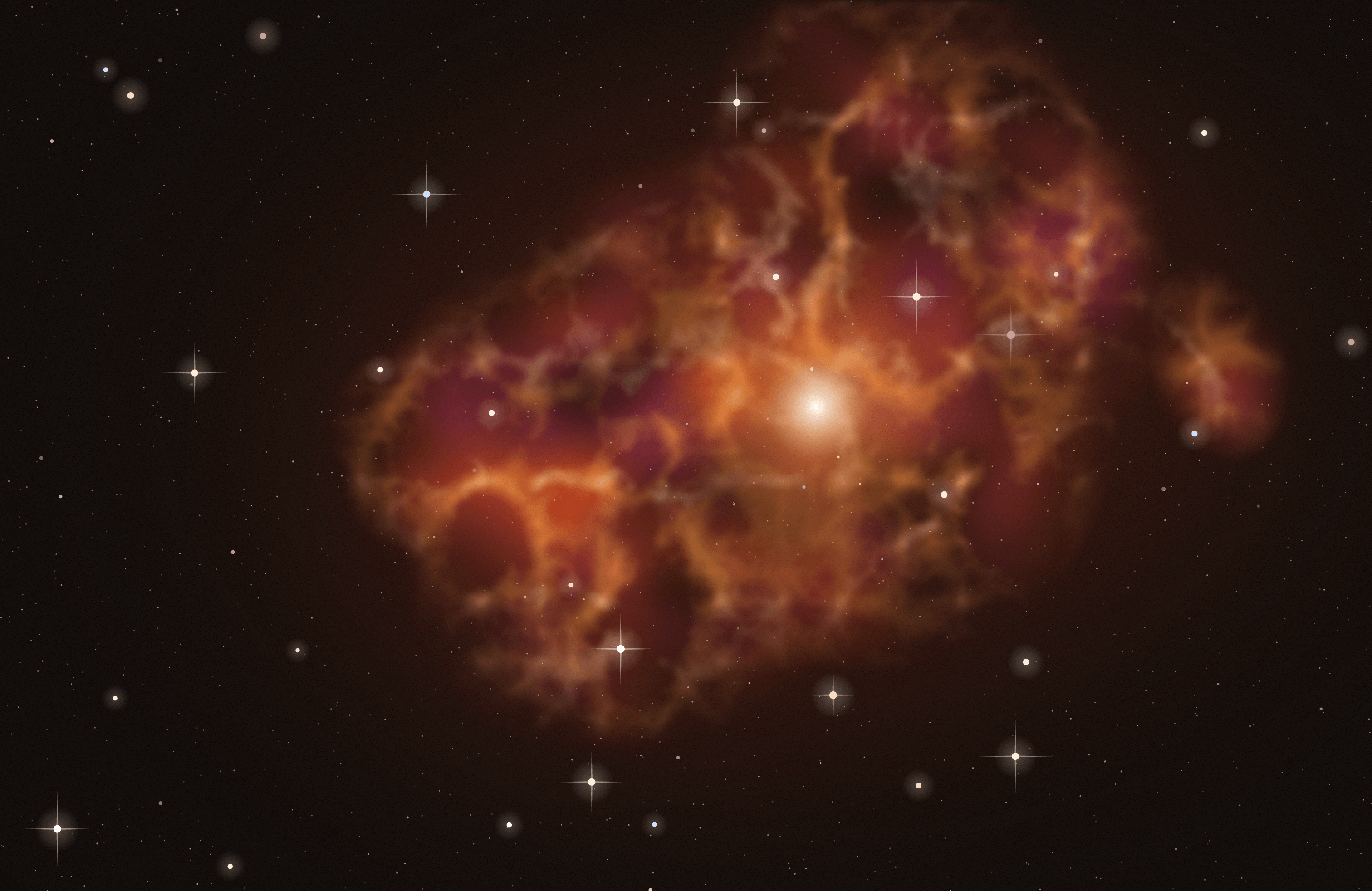
Glowing clouds of gas in deep space, with a starfield of small and bright stars and an optional bright core. Works on tall phones and wide monitors alike.
Presets
Sample wallpapers
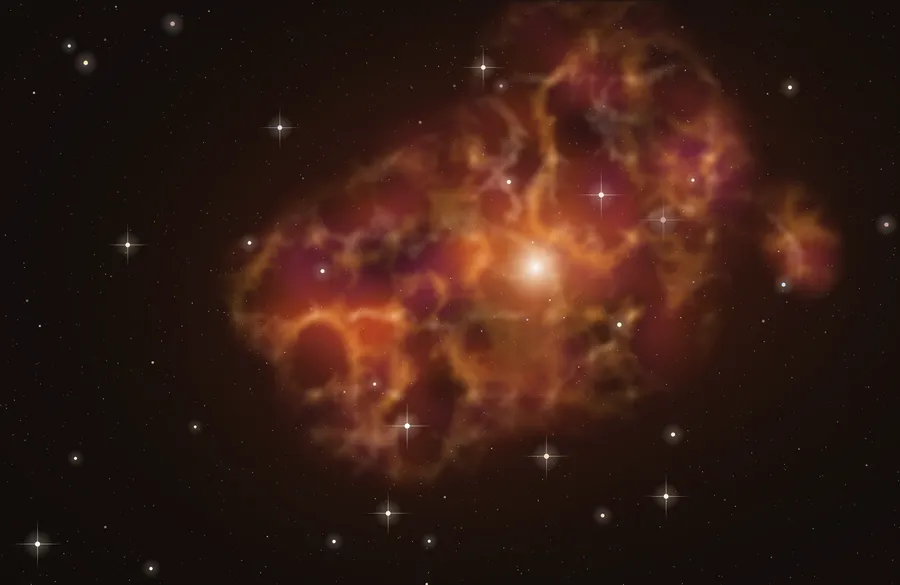
Full-size PNGs rendered by the same code as the studio. Open one to download it.
Parameters
| Key | Label | Values | Default |
|---|---|---|---|
bg | Space | hex colour | #06040f |
c1 | Gas 1 | hex colour | #6a2bd9 |
c2 | Gas 2 | hex colour | #e0459b |
c3 | Gas 3 | hex colour | #3f8cff |
star | Stars | hex colour | #fff4e8 |
shape | Shape | cloud · band · drift | cloud |
clouds | Gas | 0 to 1 | 0.7 |
scale | Cloud size | 0.5 to 2.5 | 1 |
dust | Dark dust lanes | on / off | true |
core | Bright core | on / off | true |
stars | Stars | 0 to 3 | 1 |
grain | Film grain | 0 to 0.3 | 0.04 |
seed | Seed | integer | 7 |
background.trueBlack | True black (OLED) | on / off | false |
text.none | No text | on / off | true |
text.line1 | Quote line 1 | text | Look *further*. |
text.line2 | Quote line 2 | text | |
text.paragraph | Paragraph | multi-line text | |
text.position | Position | center · upper · lower · top-left · top-right · bottom-left · bottom-right | lower |
text.font | Font | serif · display · sans · grotesk · mono · hindi | display |
text.size | Text size | 1.5 to 16 | 7 |
text.color | Text colour | hex colour | #f4ecff |
Nebula, explained
About this look
A nebula is a cloud of gas and dust in space. Some glow because nearby hot stars excite the gas, some reflect starlight, and some are dark lanes of dust that block the light behind them. Telescope images of these regions mix soft glowing clouds, thin bright filaments and dark rifts against a field of stars, and that is the look this generator aims for.
It is not a simulation of any real object, and the colours are your choice rather than the false colour palettes astronomers use. What it borrows is the structure: a body of gas that is fuller in the middle, two kinds of texture inside it, dust that cuts through it, and a starfield where most stars are faint and only a few are bright.
How it works
First the code decides the overall shape. Cloud places a body near the centre, lying along the longer side of the screen, so a phone gets a tall cloud and a monitor gets a wide one. Band across the sky runs a tilted strip from one edge to the other. Drifting off the edge enters from a top corner and fades toward the middle. Along that path it places a chain of soft white ovals, larger in the middle and smaller at the ends. These ovals are never shown directly; they act as a stencil for where gas can appear.
The gas itself comes from two noise textures generated by the browser's built in turbulence filter. Smooth fractal noise provides soft patches in Gas 1 and Gas 3. A second, rougher noise is read so that only its creases show, and those creases become thin filaments in Gas 2, with a whiter version on top for the hottest strands. If Dark dust lanes is on, a darker copy of the background colour is painted through another channel of the soft noise. Each layer is clipped to the stencil and blurred slightly, over a faint haze in Gas 1.
Stars are scattered last. Their count scales with screen area, so a phone and an ultrawide feel equally dense. The brightness of each is drawn from a steep curve, so most are faint, some get a soft glow, and the very brightest get four pointed spikes. A fine dust of tiny stars fills the gaps and, for the band shape, gathers along the gas like the Milky Way. With Bright core on, a white hot glow sits where the gas is thickest. Around a quote, the gas fades out softly and stars are kept clear.
Settings explained
- Shape
- Cloud, Band across the sky, or Drifting off the edge. Drift leaves the most empty space, which is helpful on a desktop with icons on one side.
- Gas
- How much of the noise is allowed to show. Low values give wisps; high values fill the shape with colour.
- Cloud size
- Scales the stencil ovals and the noise together. Smaller values make a tighter cloud with finer texture; larger values make broad, slow structures.
- Dark dust lanes
- Adds dark rifts through the gas. It gives depth, but turn it off for a cleaner, brighter cloud.
- Bright core
- A glowing centre that blends Gas 2 toward white. It draws the eye, so turn it off when you want the whole screen even.
- Stars
- A multiplier on star count, from 0 to 3. The Milky Way preset uses about 2.2.
Best for
Nebula is designed for dark screens and handles any aspect ratio, since the shapes follow the longer side. Violet is the default. Teal veil uses the drift shape without a core and is calm enough for a work desktop. Ember is warm red and orange. Milky Way uses the band shape with extra stars and muted colours.
This generator handles true black itself. With True black (OLED) on, space becomes pure black, the background haze and film grain are dropped, the dust lanes are painted black, and the text colour is lightened if needed. Black + quote starts from that setup with a quote turned on, and is the best preset for OLED phones.
FAQ
Why does the cloud change direction between my phone and my monitor?
The Cloud and Band shapes follow the longer side of the screen. On a portrait phone they run vertically; on a landscape monitor they run horizontally.
Why do the stars avoid my quote?
Stars inside the text area are masked out, bright stars near it are not given glows, and the gas fades softly behind it, so the words stay readable on a busy background.
Related looks
More generators to try, or see all 37.

Frutiger Aero
The glossy look of mid-2000s screens: a bright sky gradient, shiny see-through bubbles, soft light rays and a curve of water or grass.
Cutting Mat
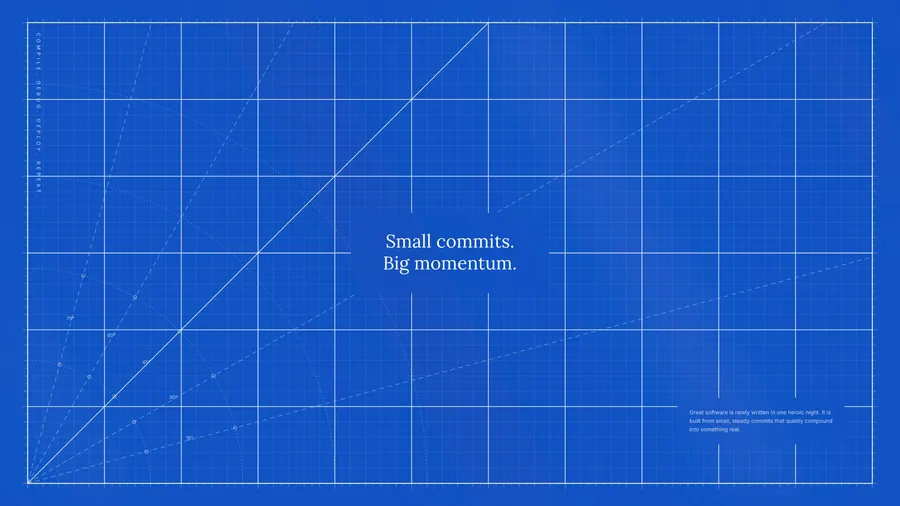
A drafting cutting mat: bold or fine grid, + marks or dots, angled guides and arcs, edge ticks and numbers, with clear zones kept around your quote.
Mesh Gradient
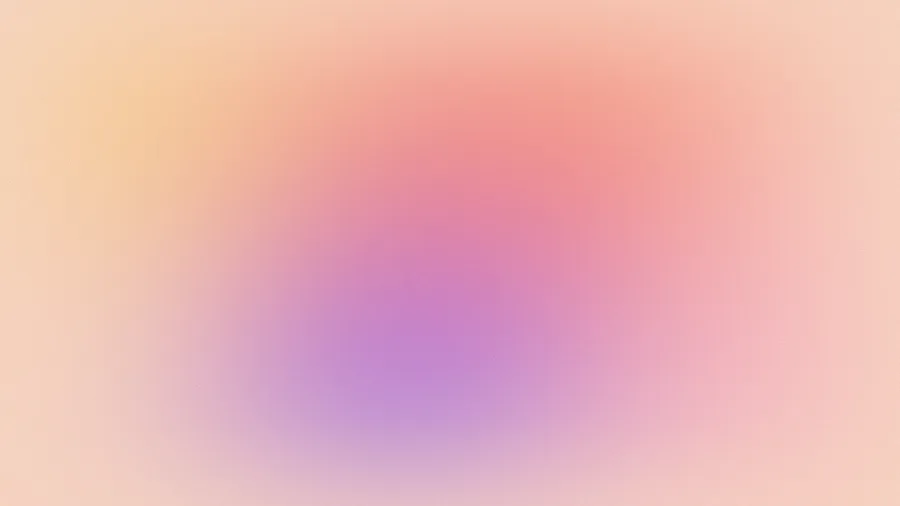
Soft multi-colour mesh gradient made of blurred colour fields, finished with film grain.
Topographic
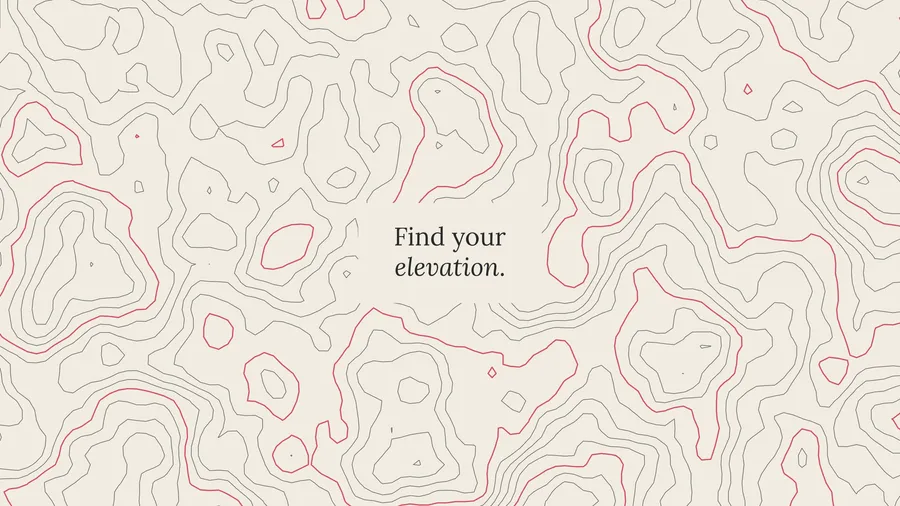
Contour lines traced from a seeded noise field, with optional two-tone index contours.
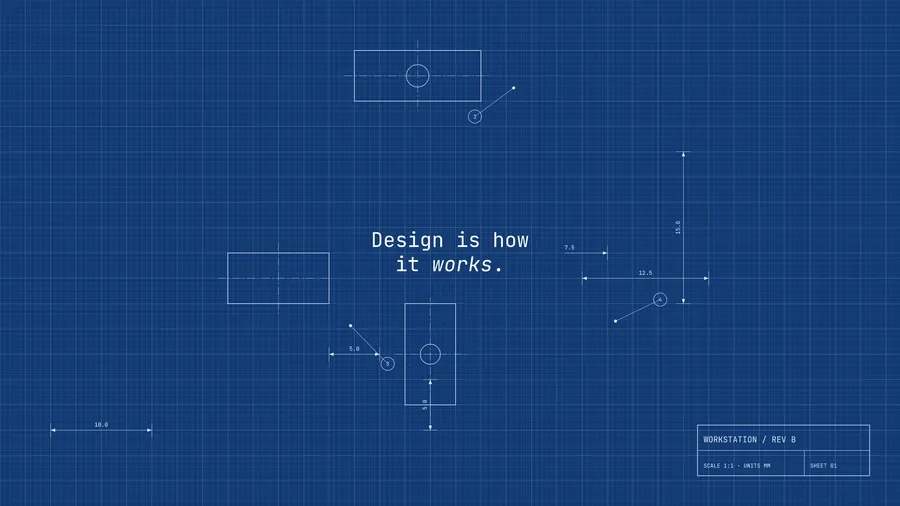
Blueprint
Engineering paper in deep blue: fine grid, part outlines with centre lines, dimension lines and numbered callouts.
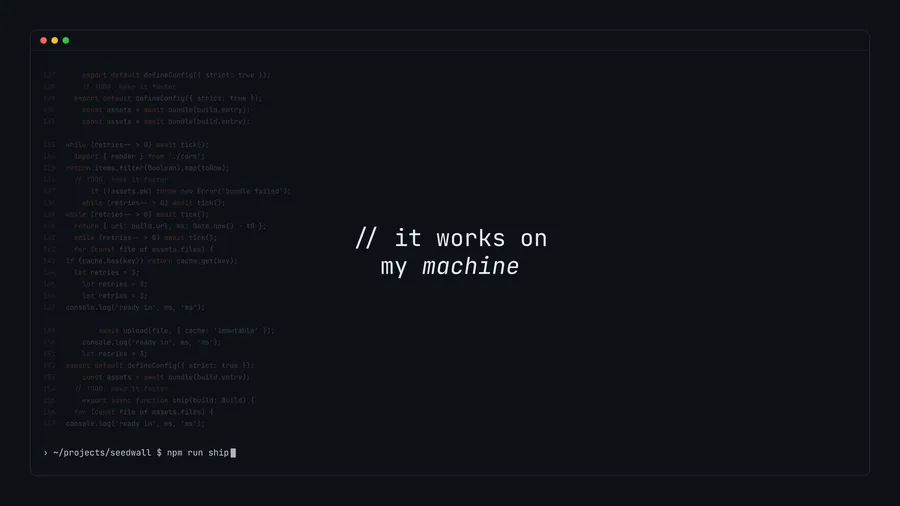
Terminal
A dark editor / terminal: faint syntax-coloured code, a prompt line with a blinking-block cursor, and your quote on top.